Free AI video generator

Describe a short clip or start from a photo, choose the length and quality, then finish it on a video timeline.

0 / 500

The free plan needs no card, and the credit estimate shows before anything is made.

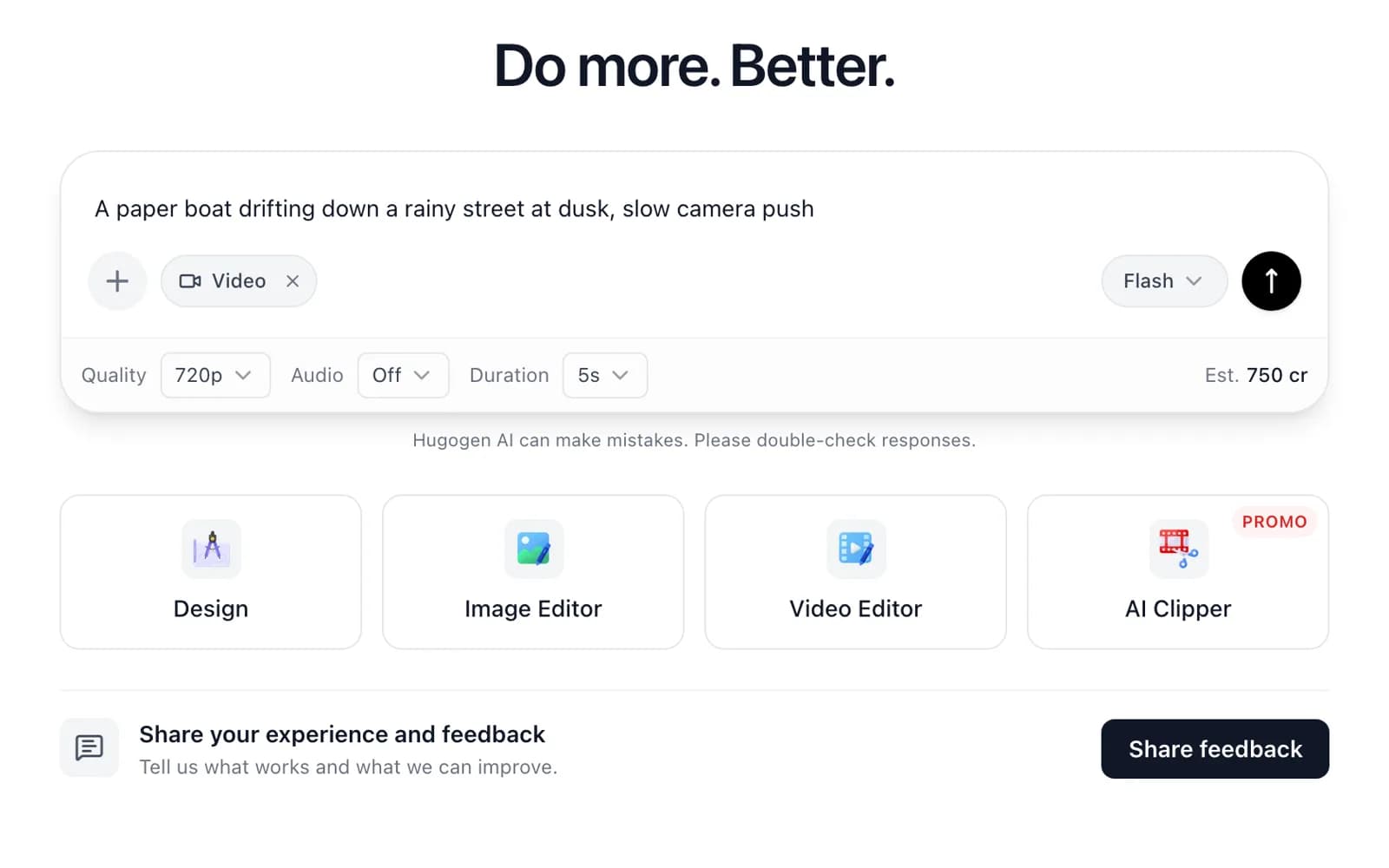
The Hugogen composer in Video mode with a prompt about a paper boat and the quality and duration controls

A short clip from a few words

Five, ten or fifteen seconds a clip

Each clip runs 5, 10 or 15 seconds. Several clips can be joined on the video timeline to tell a longer story, with cuts and transitions between them.
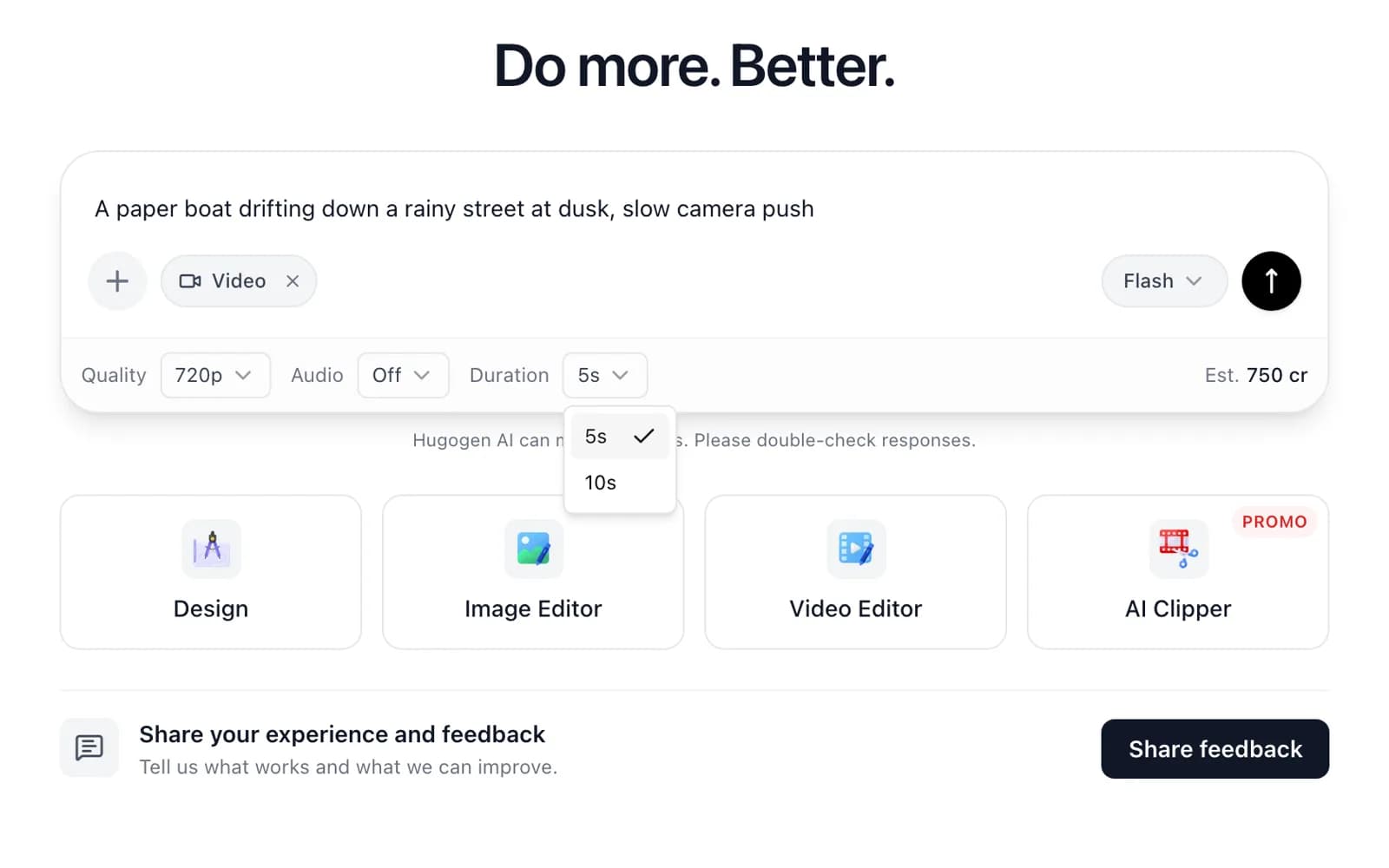
The duration menu in the composer offering 5 and 10 seconds

Three levels at 720p or 1080p

Flash is the default, and Standard and Pro add detail. A level outside the current plan shows a lock in the composer. Each level comes in 720p for quick drafts or 1080p for the final cut, and the composer shows an estimate of the credits a clip will use before it is made.
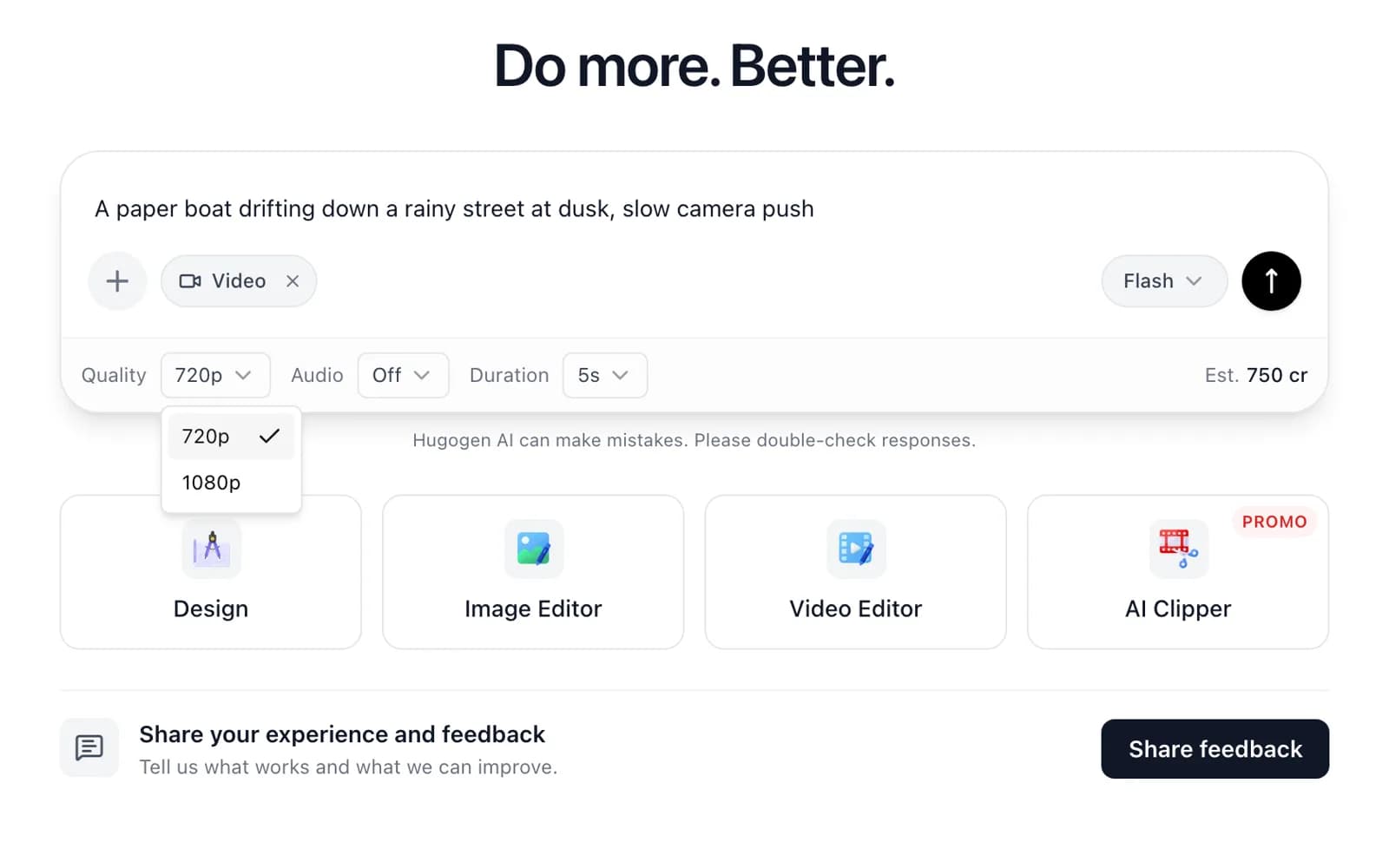
The quality menu in the composer offering 720p and 1080p, with a credit estimate on the right

Sound on every clip

Every clip is generated with sound. On the timeline, Detach audio moves the sound to a track of its own, where it can be muted or replaced, and sound effects or an audio file can go on top.
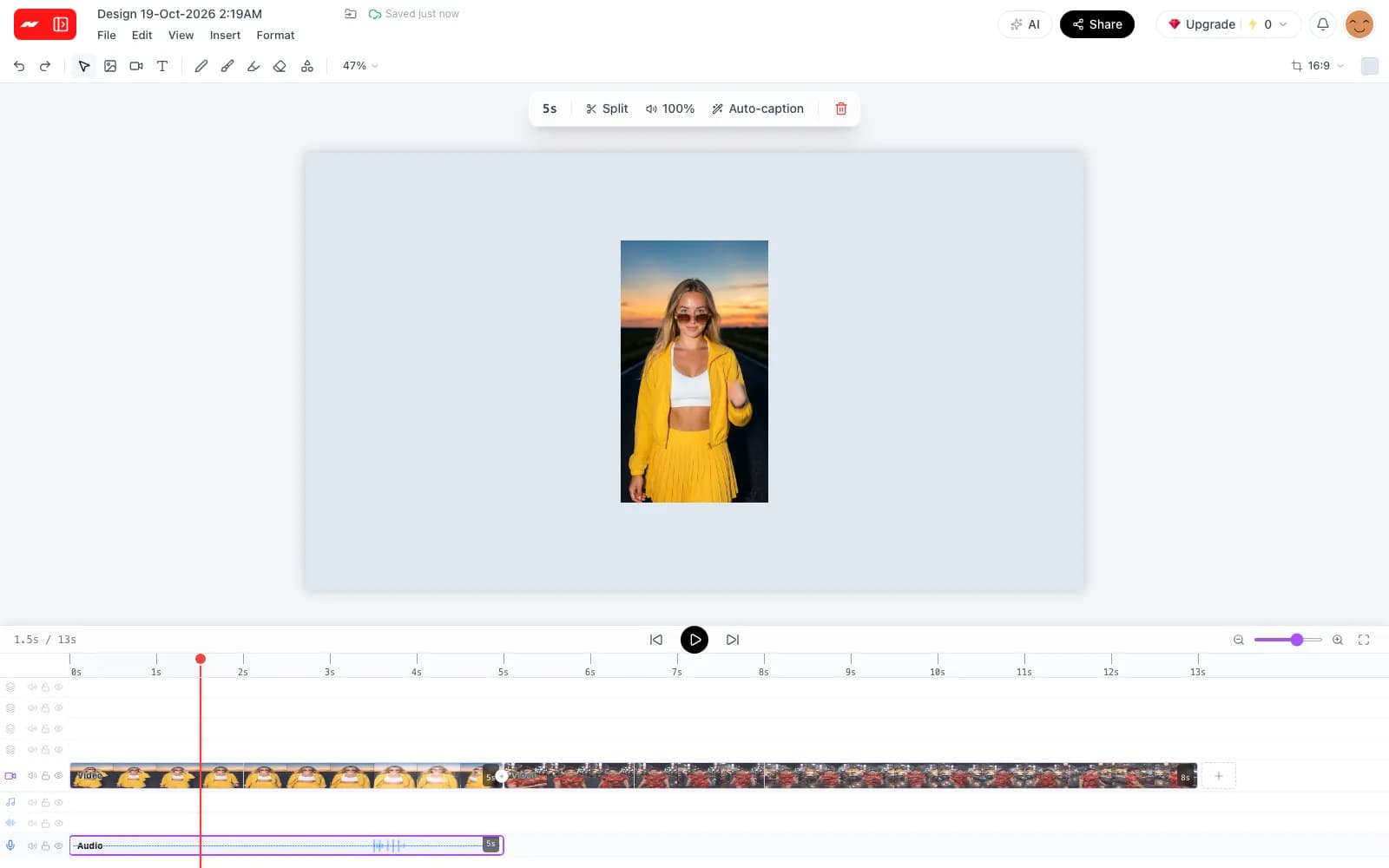
A clip on the Hugogen video timeline with its sound on an audio track of its own, selected, and the volume control above it

Turn a photo into a moving scene

Attach a photo with the plus button and it becomes the first frame, with the scene moving on from there. A product shot can become a short ad this way.
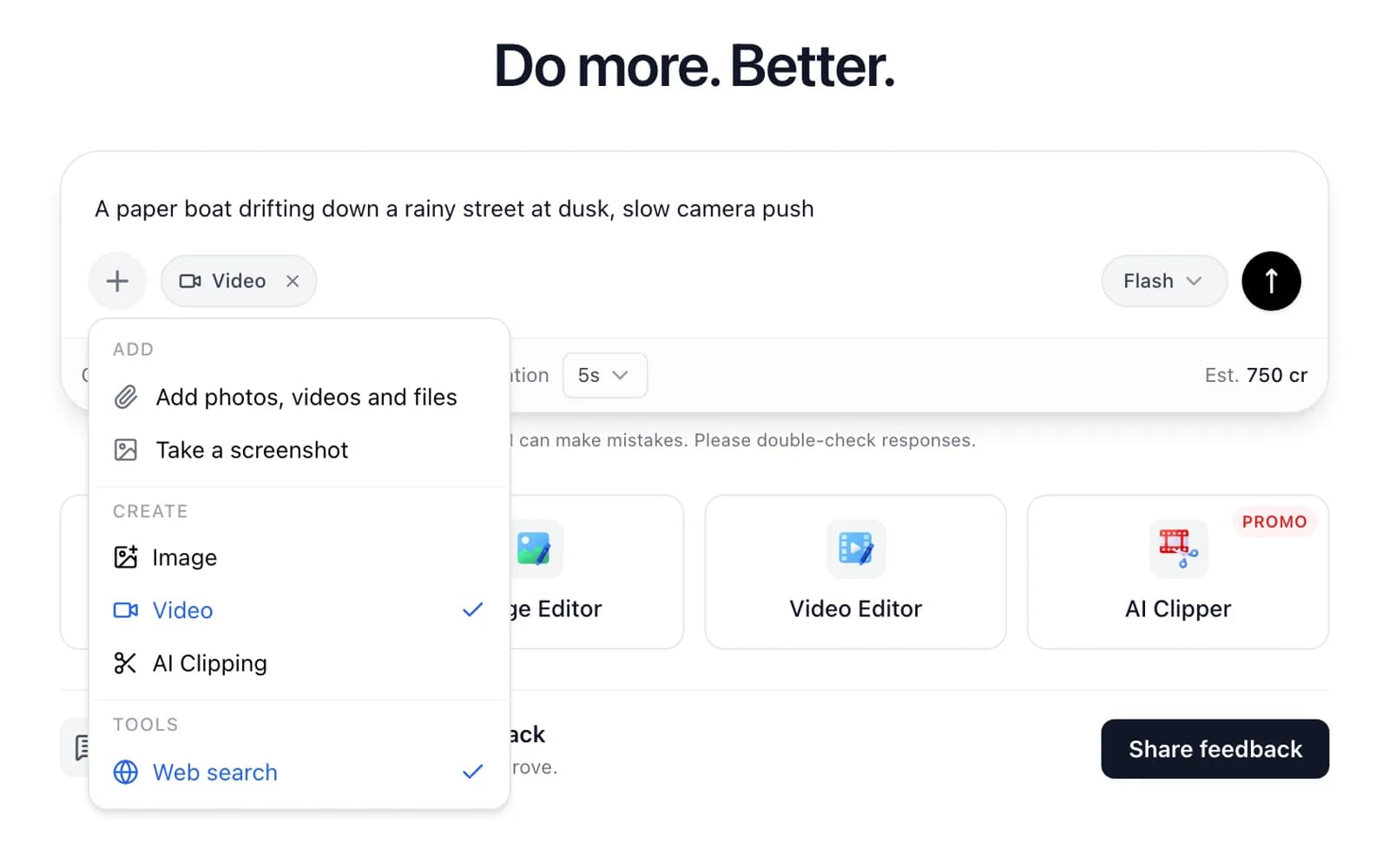
The composer's plus menu with options to add photos and to switch between Image, Video and AI Clipping

How to make an AI video

  1. Step 1

    Describe the scene

    Write a sentence about the subject, the setting and the camera, or attach a photo to start from.

  2. Step 2

    Choose length and quality

    Pick 5, 10 or 15 seconds, a level and 720p or 1080p, then press send, and the clip arrives with its own sound.

  3. Step 3

    Edit on the timeline

    Open the clip in the video editor to trim it, add captions and join it with other clips.

Clips for every short video feed

A clip can be reframed on the timeline for each of these shapes after it is made.

Reels and TikTok clips
9:16
Shorts
9:16
Landscape YouTube clips
16:9
Instagram feed clips
4:5
Square clips
1:1

More free tools from Hugogen

Questions and answers

The free plan comes with starter credits and needs no card. Each clip uses credits, and the composer shows an estimate before anything is made.

Each clip runs 5, 10 or 15 seconds, and a length the attached photo rules out shows as unavailable. Longer videos come from joining several clips on the timeline.

Clips come in 720p or 1080p on each of the three levels, Flash, Standard and Pro. The higher resolution uses more credits for each clip.

Every clip is generated with its own sound, with nothing to switch on. On the timeline the sound can be muted, replaced or moved to a track of its own, with sound effects and audio files on top.

An attached photo becomes the first frame of the clip, and the scene moves on from there.

The Open in editor button puts the clip on the video timeline, with trimming, captions, transitions and resizing for each platform.

Every clip lands on the same timeline as uploaded footage, where clips can be put in order, trimmed and joined with cuts, fades or slides into one longer video.

A finished video downloads from the editor as an MP4 file for any social platform, at the size chosen for the platform.

Exported clips carry no Hugogen watermark on any plan, the free plan included.

A free account is needed to make and export clips. Signing up takes a Google account and no card.

Put the first scene in motion

Describe the clip, choose the length and finish it on the timeline with captions and sound.

Open the video generator