Free online video merger

Upload several clips in one go, place them end to end in the order picked, and join them with a fade, a wipe or a hard cut.

Clips of different shapes and lengths sit one after another in the same finished video.

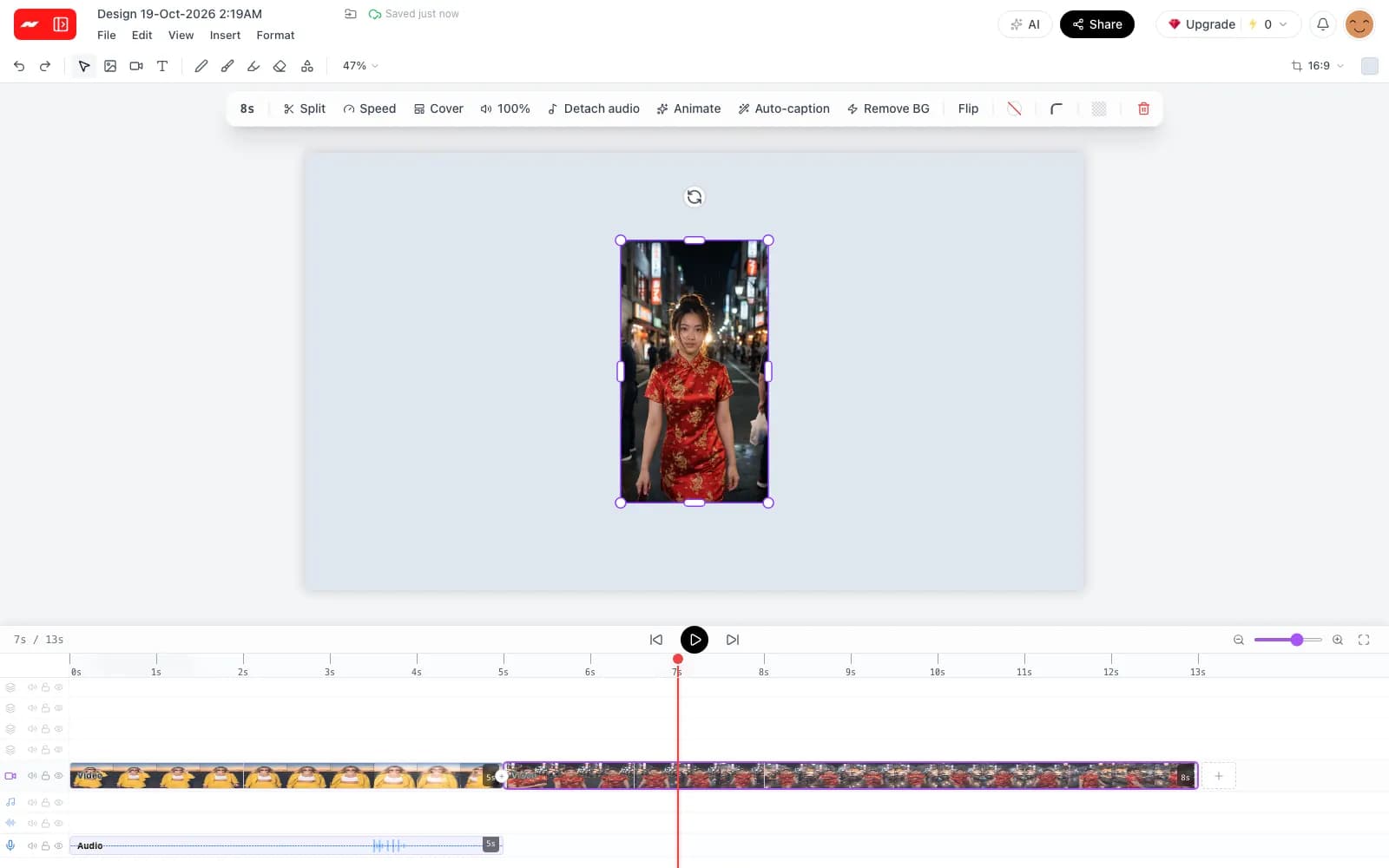
Two video clips one after another on one timeline track, the second a vertical shot inside the wide frame, with the first clip's sound on its own track below

Several files into one video

Clips land end to end, in the order picked

Ticking several clips in the library places them one after another on the same track, each clip starting where the last one ended. Dragging a clip somewhere else snaps either of its edges onto a neighbour's edge within 8 screen pixels, and two clips on one track never overlap: a clip dropped on a busy spot lands against the blocking clip instead.
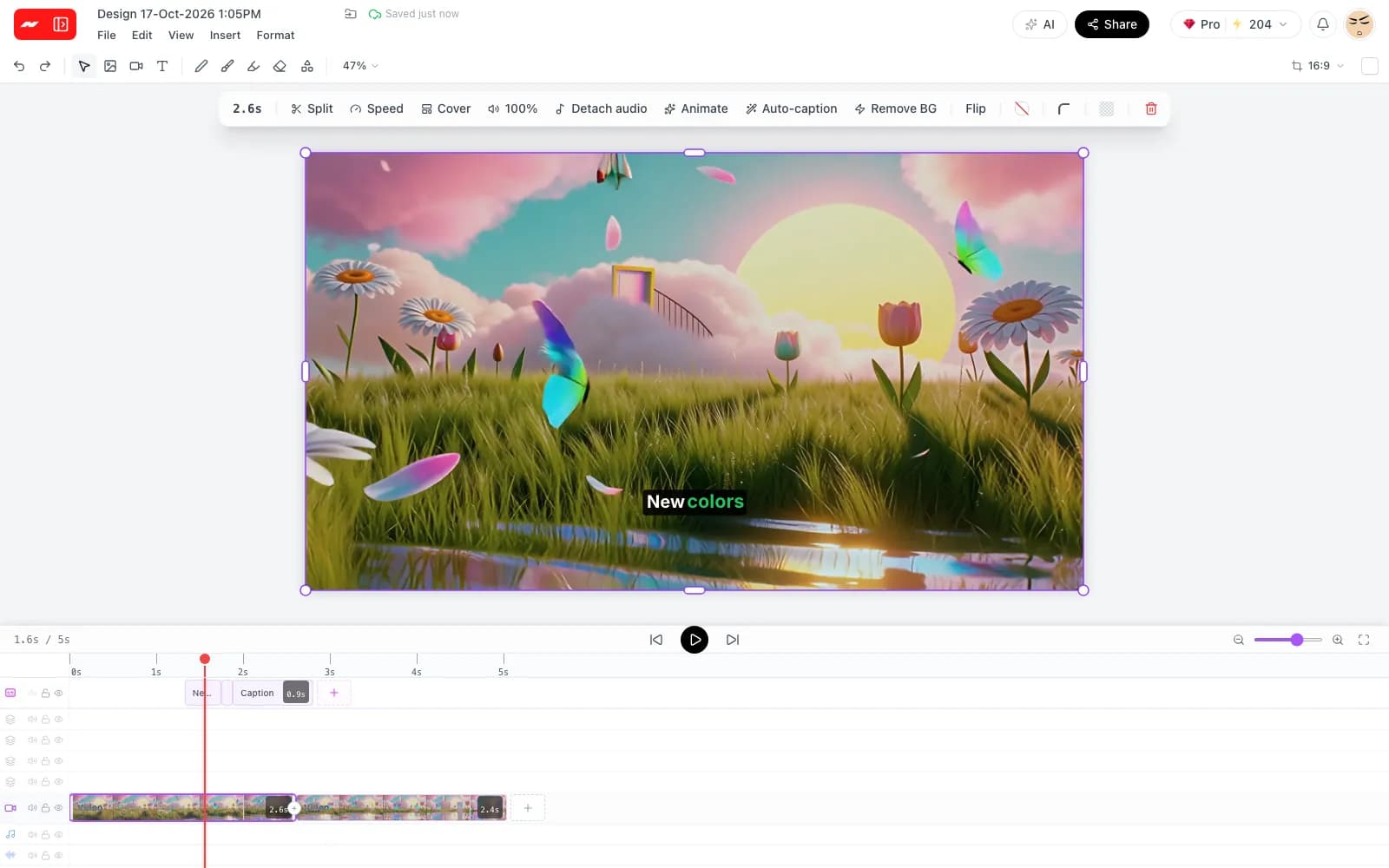
Two clips meeting on one track of the video editor, with the join control at the boundary and an add tile at the end of the track

Each clip keeps or drops its own sound

A clip arrives with its own sound. Detaching puts the sound on its own track, where trimming, moving or deleting leaves the picture alone, and reattaching puts the two back together. Through a fade or a dissolve, both clips' sound follows the same curve in the preview and in the exported file.

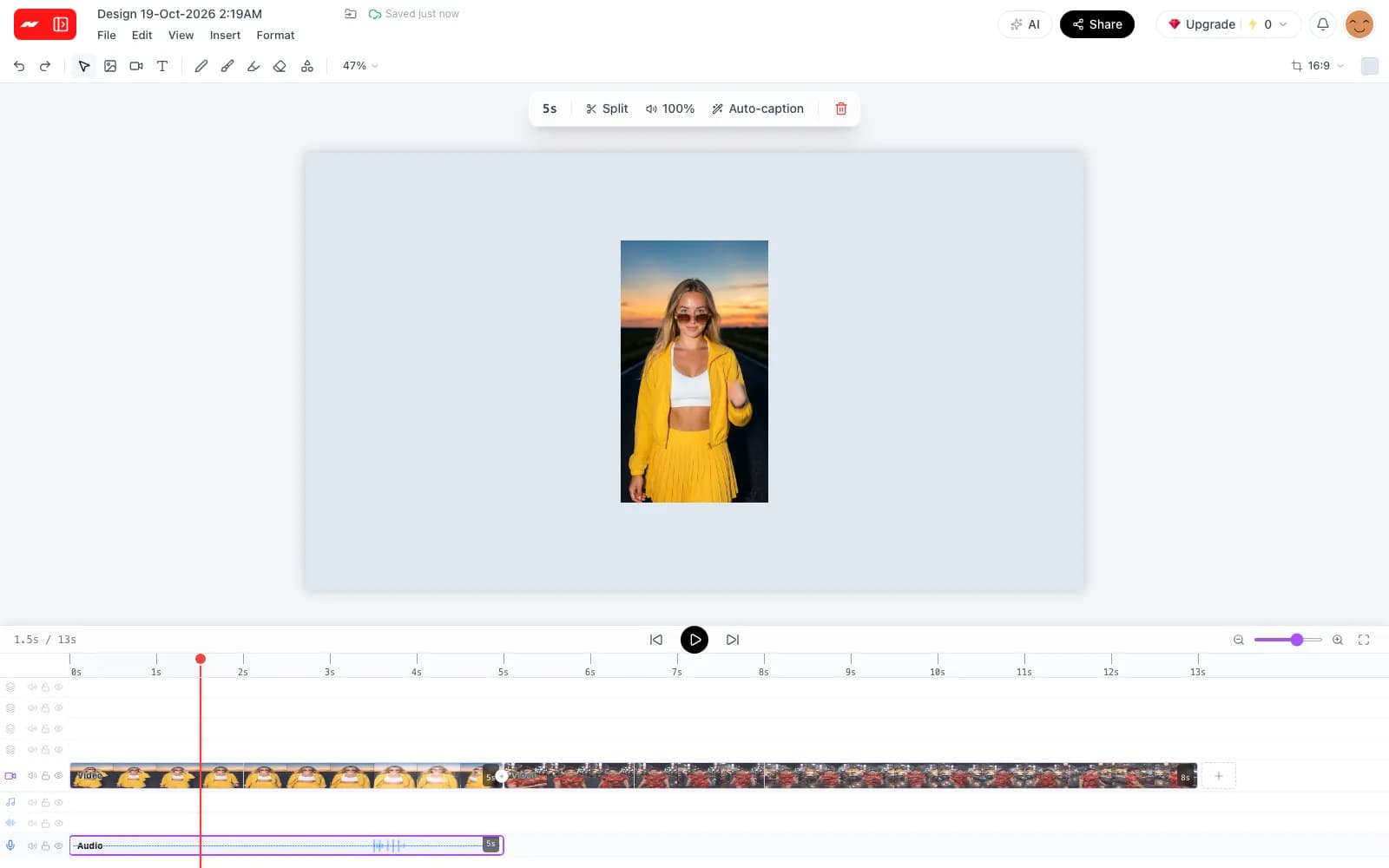
The sound of a clip on a separate audio track below the video track, selected, with its waveform visible

One MP4 at the end, never a watermark

The finished video renders on Hugogen's servers and arrives as a single MP4 file, at 720p on the free plan and 1080p on a paid plan. Nothing is drawn over the picture on any plan. A browser render stands in only when a server render fails.

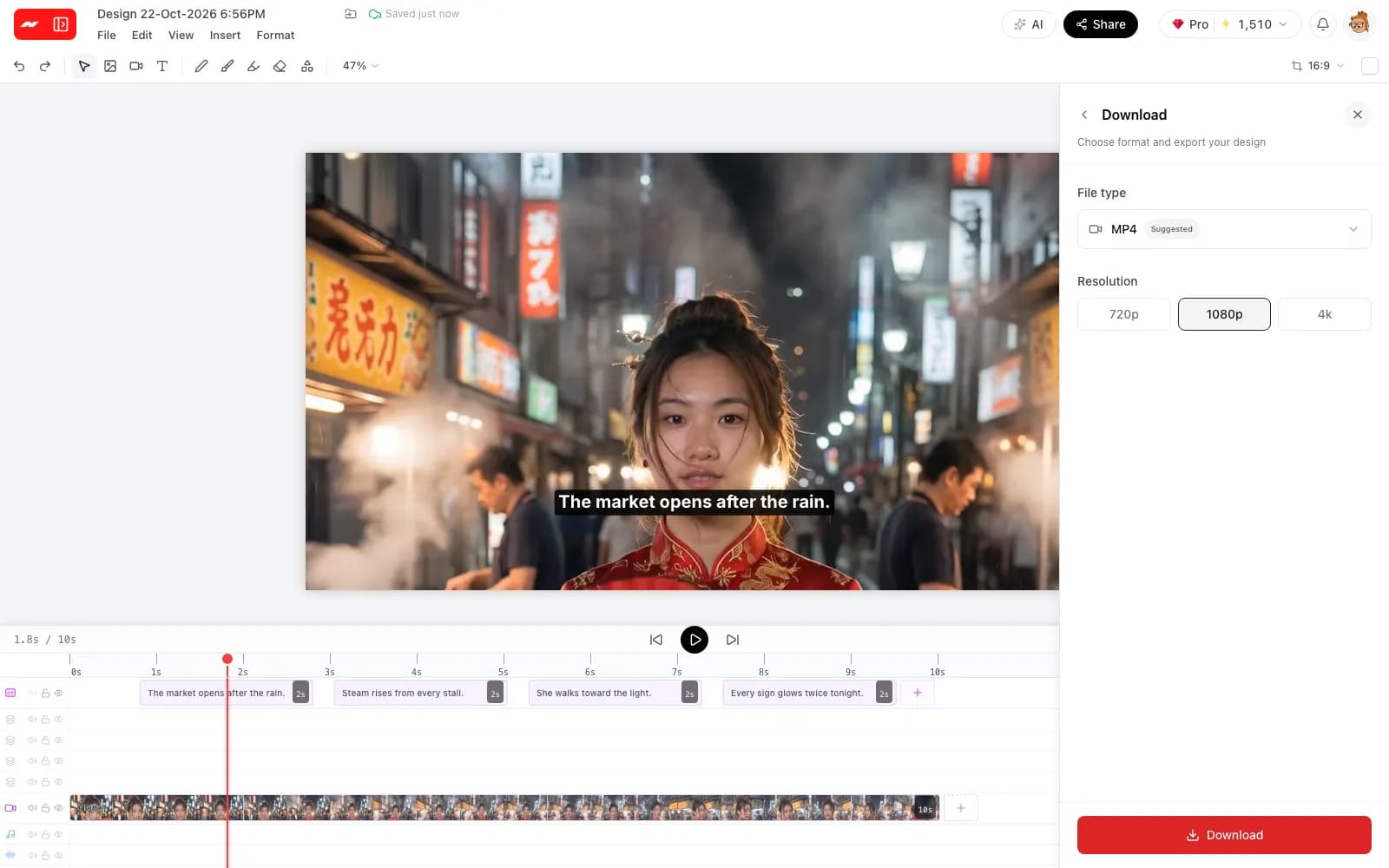
The download panel in the video editor with MP4 chosen and the resolution choices listed

How to merge videos online

  1. Step 1

    Add the clips

    Open the video editor and upload several video files in one go, up to 2 GB per file.

  2. Step 2

    Put them in order

    Tick the clips in the library and press Add clips, then drag any clip along the track to reorder.

  3. Step 3

    Export one MP4

    Send the joined clips to export. One MP4 file comes back, with no watermark on the free plan.

Jobs one merge finishes

Each job below is several files on one track, and every source file is left exactly as it arrived.

A recording from two cameras
Both takes on one track, in order
Clips from a phone and a camera
Each clip keeps its own layout
A recap of several short takes
Tick them all, add them in one press
A screen recording with an intro
The talking head first, the demo after
Two scenes joined by a fade
Any join from 0.2 to 2 seconds

More free tools from Hugogen

Questions and answers

Several files upload in one pick, and ticking them in the library places each clip after the last one on the same track. Dragging a clip along the track changes the order at any point.

No number is fixed in the picker. The practical ceiling is the storage a plan carries, and the upload pane gives a warning from 80 percent of the allowance and again at the limit.

Every clip carries its own layout inside the output frame. Letterbox shows a whole shot with bars, Wing Blur puts the whole shot over a blurred fill, and a vertical phone clip sits inside a landscape frame rather than being cut off.

Seven joins are offered: a cut, a fade, a dissolve, a slide from the left, a slide from the right, a wipe and a zoom. Each one runs from a fifth of a second to two seconds, picked on the control between the two clips.

Every clip brings its own sound along. The sound detaches onto a track of its own for trimming or deleting, and reattaches to the clip afterwards.

Joining clips rewrites none of them. The finished project is encoded once at export, at 720p on the free plan or 1080p on a paid plan.

Music and voice files sit on tracks of their own below the clips, either from the built-in sound library or from an upload. Each one is trimmed and moved like any other clip on the timeline.

The clips play left to right along the track, in the order the ticks were made. A clip dragged to a new spot takes a new place in the order, and the clips butt together with no gap between them.

One MP4 file, rendered on Hugogen's servers, at 720p on the free plan or 1080p on a paid plan. The picture carries no watermark on any plan.

Join the first two clips now

Open the editor, upload the clips, tick them in the library and press Add clips.

Merge videos