Free AI video editor, edit footage by prompt

A plain request, such as cutting the pauses or captioning a recording, becomes the edit on a real timeline, with every change still open to adjust by hand.

The agent writes its plan first, and nothing changes before approval.

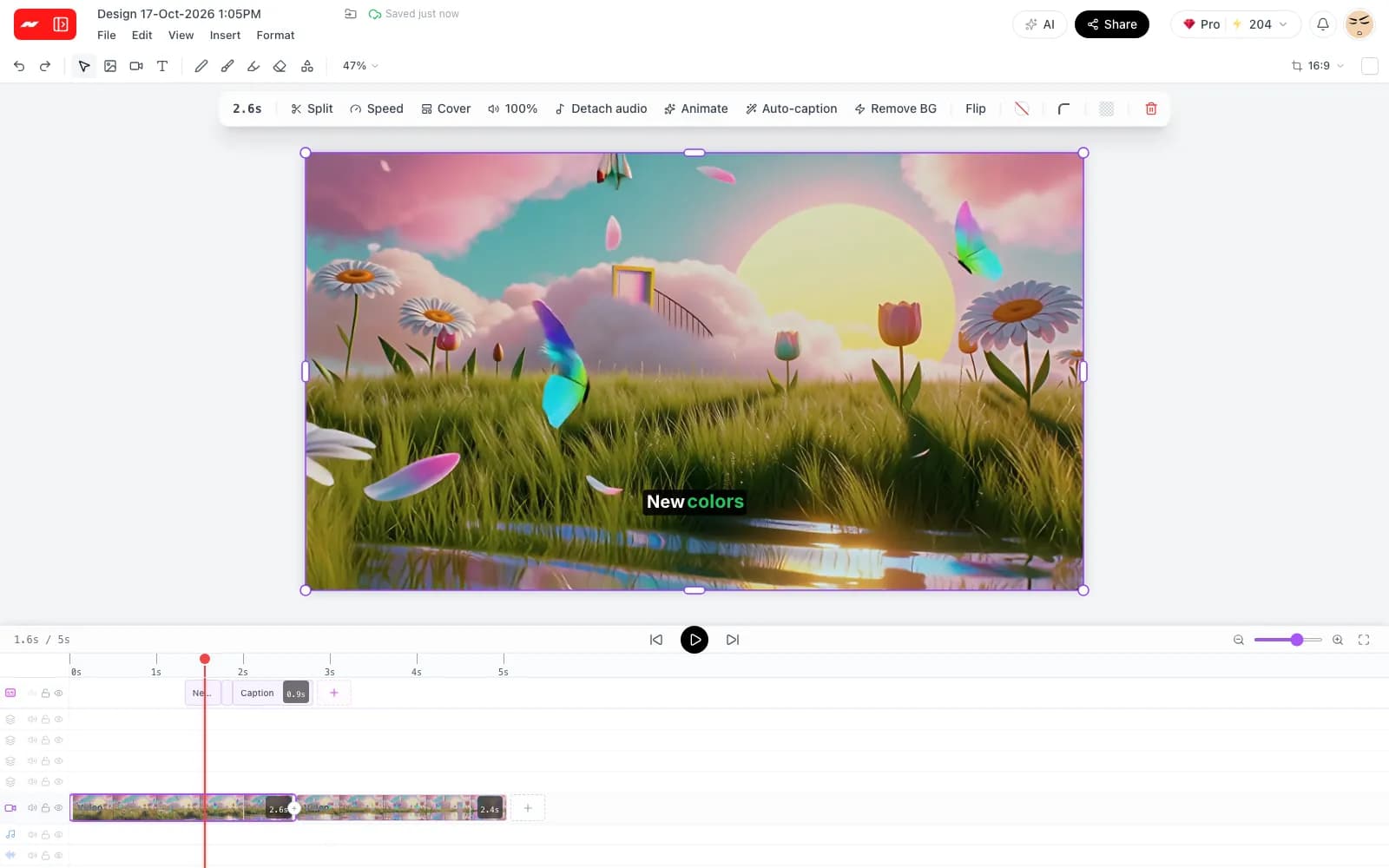
A clip selected on the multi-track timeline of the Hugogen video editor, with its editing tools above it

The AI video editor on a real timeline

Edit footage by describing the change

The AI panel reads the recording first, then writes a plan: the length before and after, every cut, and each moment in the speaker's real words. After approval the agent cuts pauses and filler words, adds captions, reframes the shot and places a graphic at a spoken word.
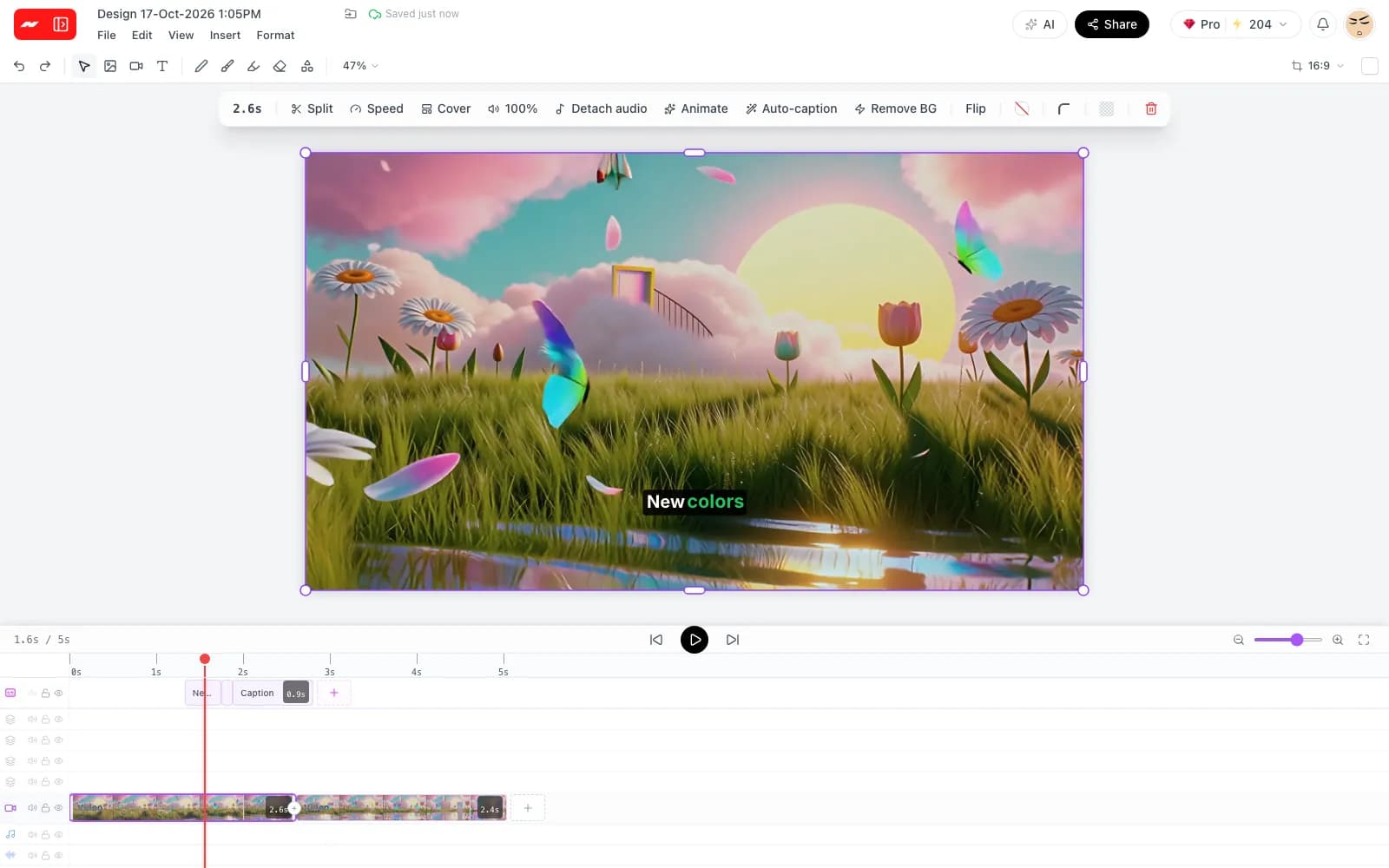
A clip selected on the timeline with the split, speed and caption buttons above it

Captions follow every cut

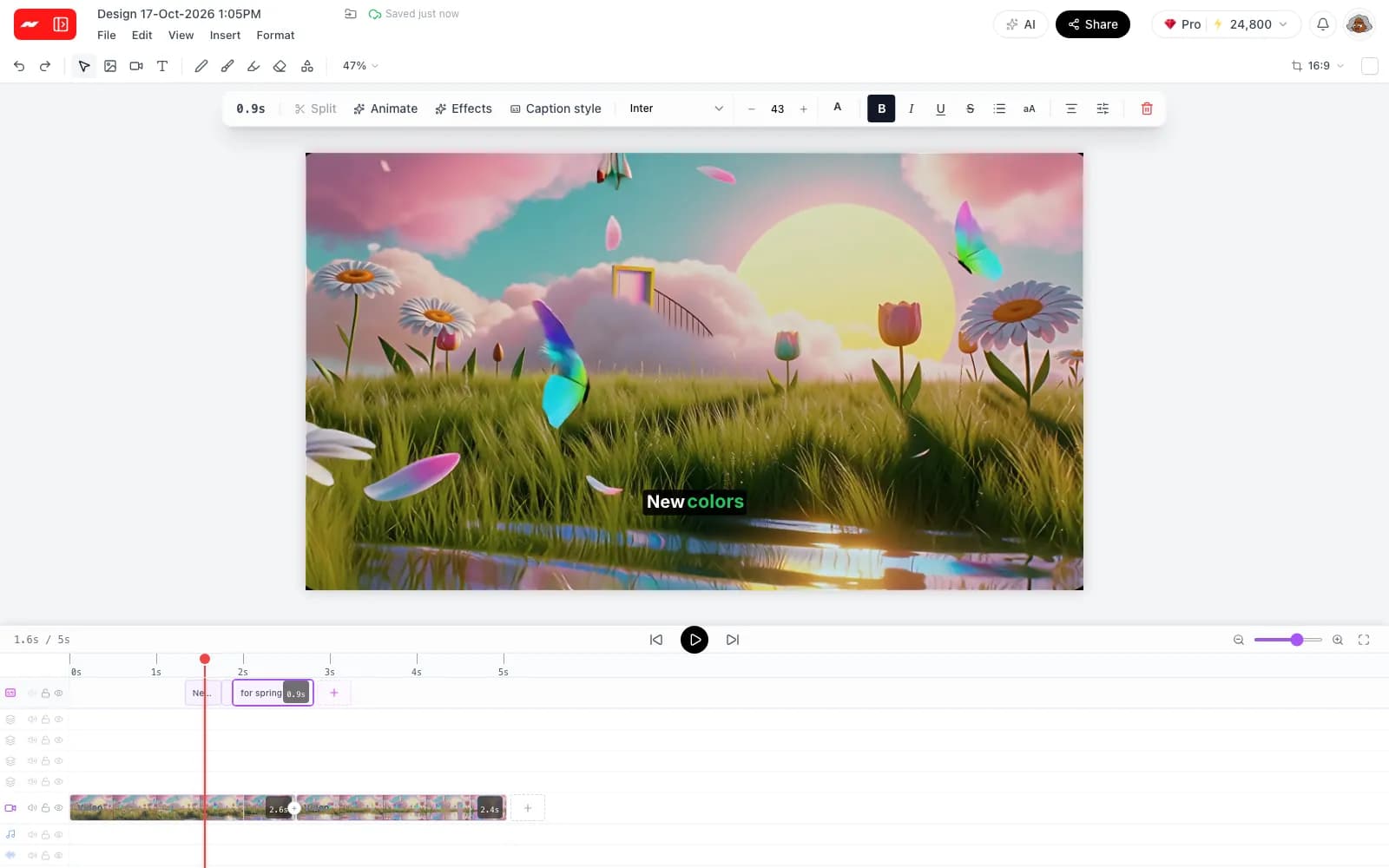
Auto-caption transcribes the speech and times each word on the timeline, in one of six styles such as Karaoke, Bold Pop or Minimal. Caption lines written by the agent move with the cuts, and the spoken language is detected on its own.

Captions on their own track in the Hugogen video editor, one caption selected

Reframing and layouts for every platform

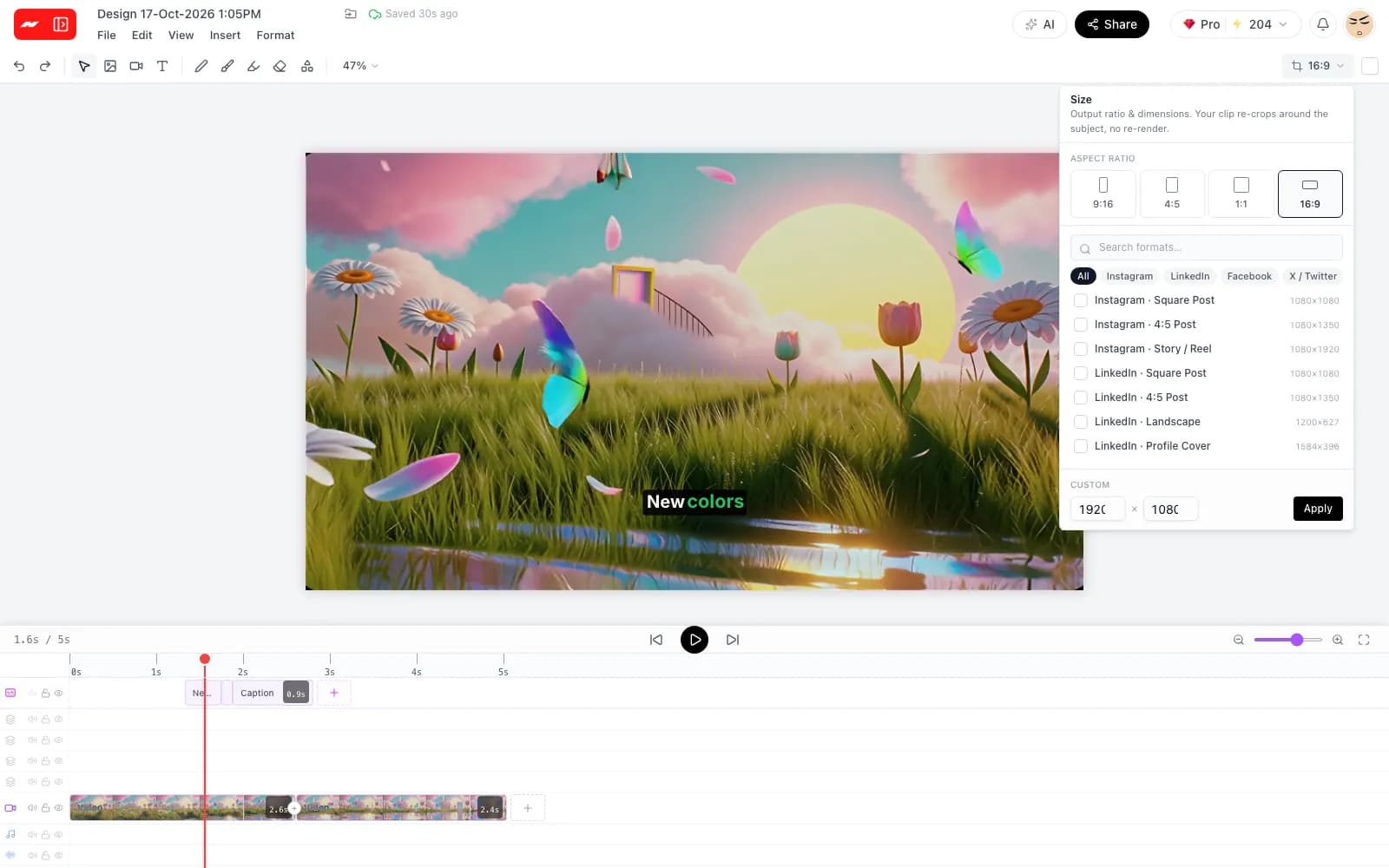
Switch a clip between 9:16, 4:5, 1:1 and 16:9 with no new render, and pick a layout such as Letterbox, Wing Blur, Square, Gaming or H-Split. Asked for a vertical cut, the agent can follow the speaker instead of centring the frame.

The size menu in the video editor listing vertical, portrait, square and landscape shapes

Remove the background from a clip

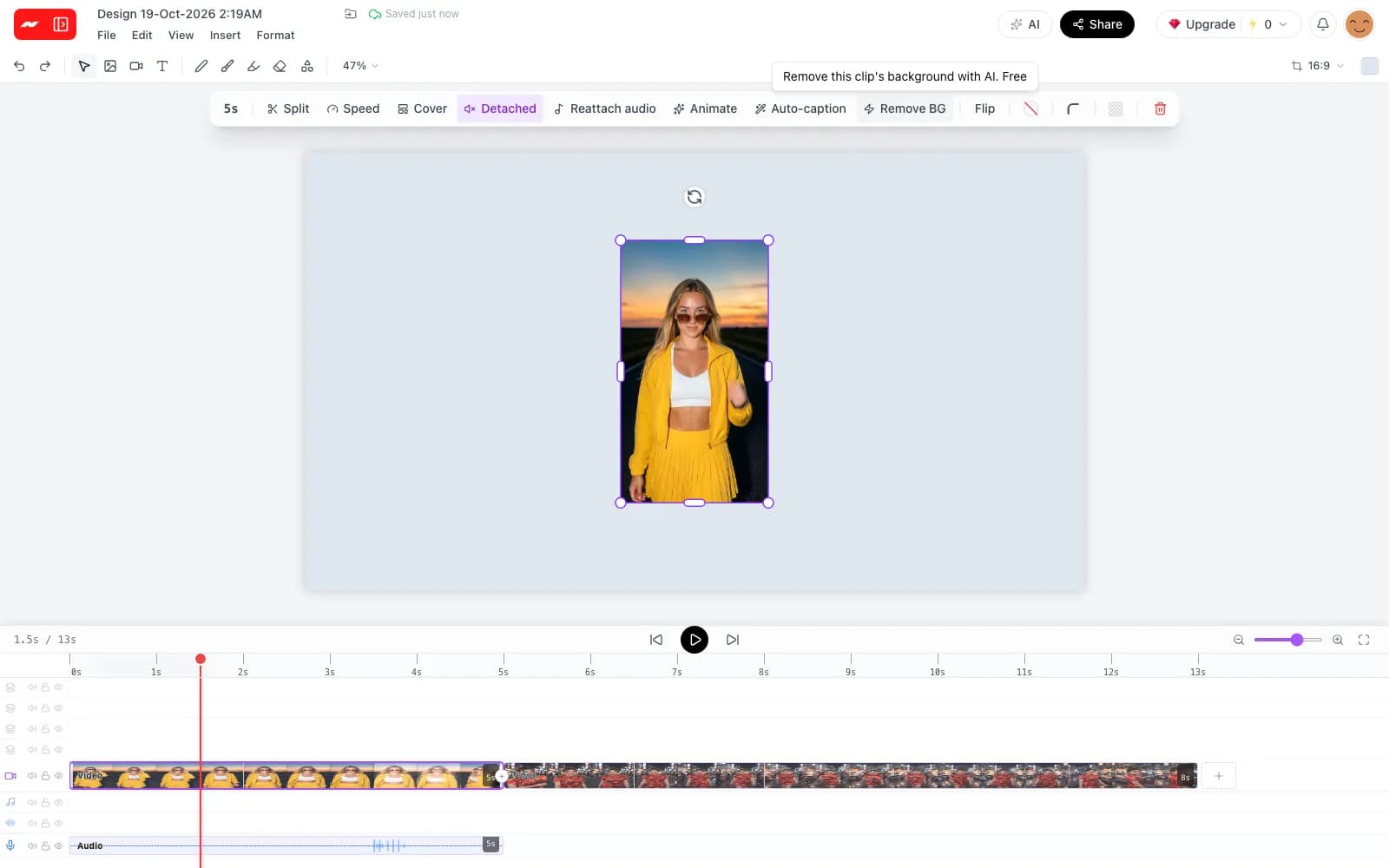
Select a clip of up to two minutes and press Remove BG to lift the person or product off its background, with no green screen. The clip's sound moves to its own audio track before the swap.

The Remove BG tooltip above a selected clip in the video editor

Long videos cut into short clips

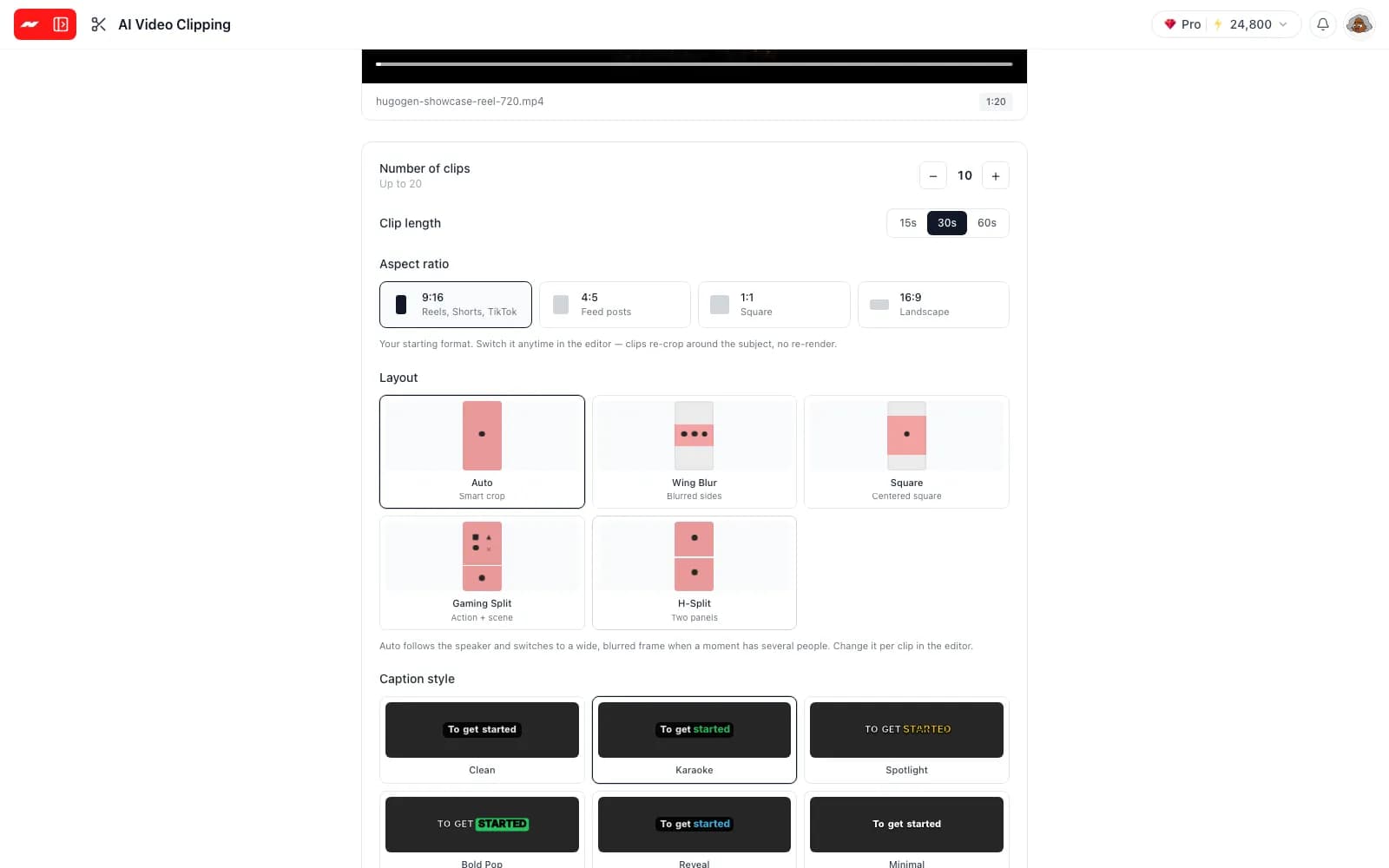
The AI clipper reads a long video, picks the strongest moments and builds captioned, reframed clips. Each one opens on this same timeline, ready to finish and export as an MP4 with no watermark.

Open the AI video clipper page
The clip count, clip length, shape and layout settings on the AI clipping screen, with a video added

How to edit a video by describing the change

  1. Step 1

    Add the footage

    Open the video editor and upload a recording, or pick a file already in the project.

  2. Step 2

    Describe the edit

    Write the change in plain words in the AI panel, such as cutting the pauses and captioning the result.

  3. Step 3

    Approve the plan

    Read the length before and after and every cut, approve the plan, then finish by hand and export an MP4 with no watermark.

Made for people who edit video every week

The agent takes on the slow parts of cutting a recording, and the timeline stays open for every part a person wants to control.

YouTubers
a long recording cut down and captioned
Podcasters
long episodes cut into short clips
Social media teams
one video in every shape
Online shops
product clips on a clean background
Course creators
captioned lessons ready to post

More free tools from Hugogen

Questions and answers

Describing the change works today. Write the request in the AI panel beside the timeline, and the agent reads the recording, writes a plan and makes the edit once the plan is approved.

It cuts pauses and filler words, writes captions timed to the speech, reframes a shot, changes the shape, and places a graphic or a sound at a spoken word. The agent can also place footage already in the project above the main clip, or generate a short clip for the same spot.

Every result is an ordinary clip on the timeline. A cut keeps the footage inside the file, a clip edge drags back to where it was, and the whole run is a single undo step.

The video editor is included on the free plan. Transcribing a recording and generating a clip are the paid steps, and each one asks on a card showing its cost before it runs. Cuts, captions, reframing and graphics cost nothing.

The editor does not separate one speaker from another. The framing follows faces instead, and a recording with one person on camera is where the agent works best.

The clipper turns one long video into many short clips. The AI video editor changes a single video from a written request, and keeps the result on a timeline to finish by hand.

Videos exported from the editor carry no Hugogen watermark, on the free plan or on any paid one.

A free account is needed to open the video editor, and signing up needs no card.

Start editing by describing the change

Open the video editor, add a recording and write the change in plain words. The plan comes first, and the timeline stays open.

Open the video editor