Free tool to add subtitles to video

Upload a video, let the AI write the subtitles or type them line by line, then place them, fix any word and download an MP4 with the subtitles in the picture.

Included on the free plan. Subtitles typed by hand cost nothing, and exports carry no watermark.

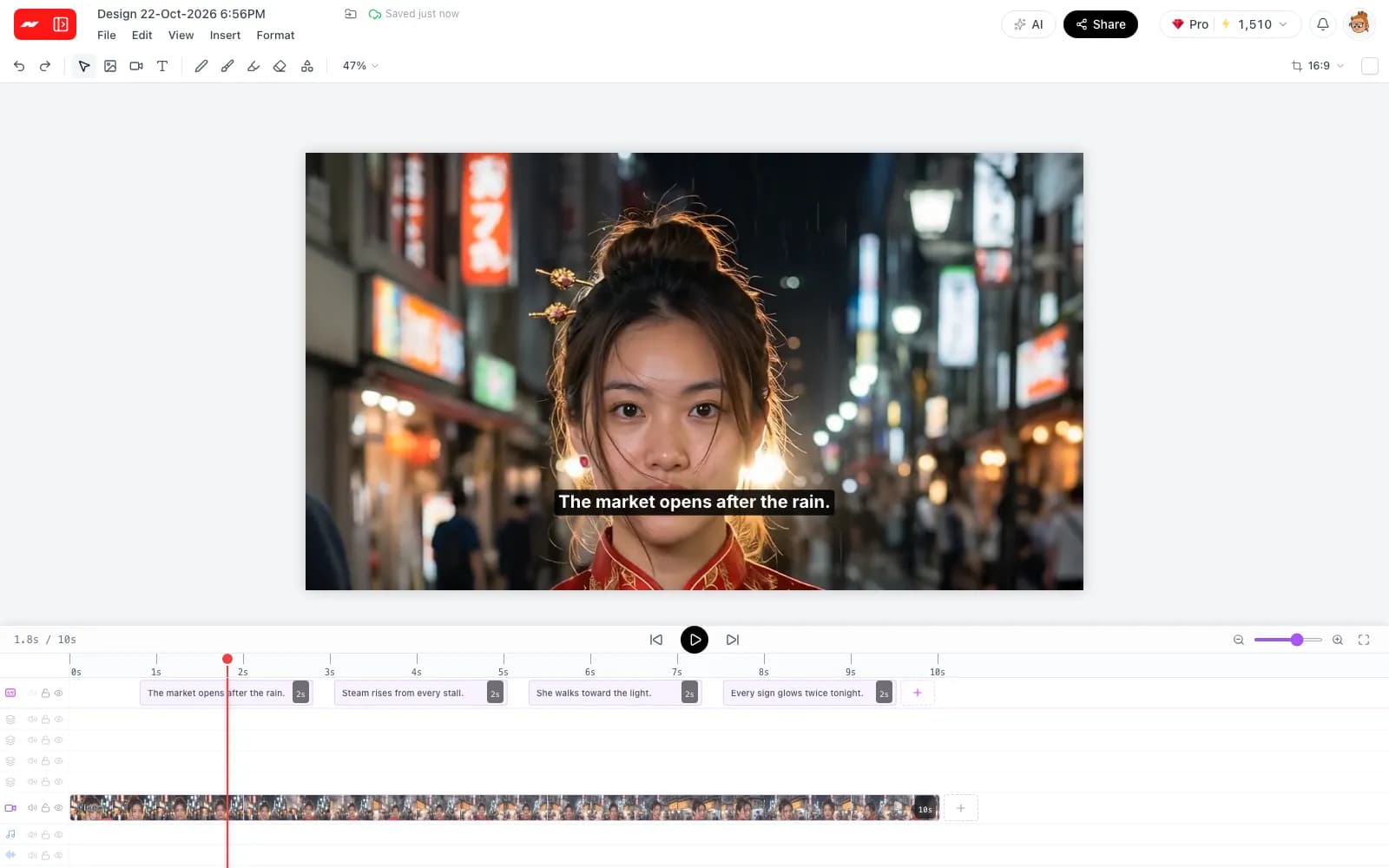
A plain white subtitle in the lower third of a landscape video in the Hugogen video editor

Subtitles for any video, generated or typed

Type subtitles line by line

Add a subtitle at the playhead and type the words, with no AI and no charge. Each new line runs two seconds to start with and can be stretched, moved along the track or split at the playhead.

Rather let the AI write them? See AI captions
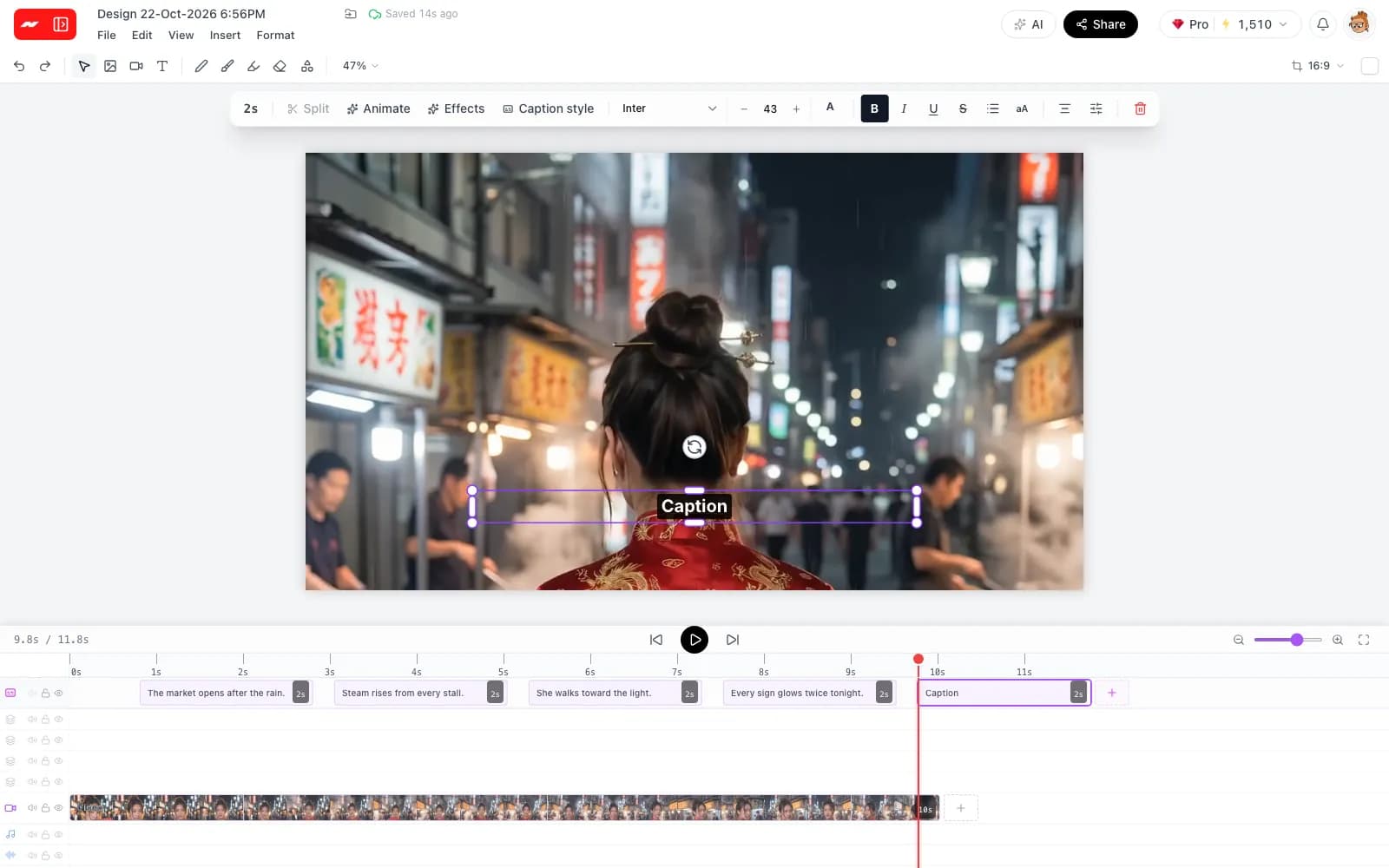
A new subtitle line added at the playhead on the caption track, ready to type

Correct the wording in place

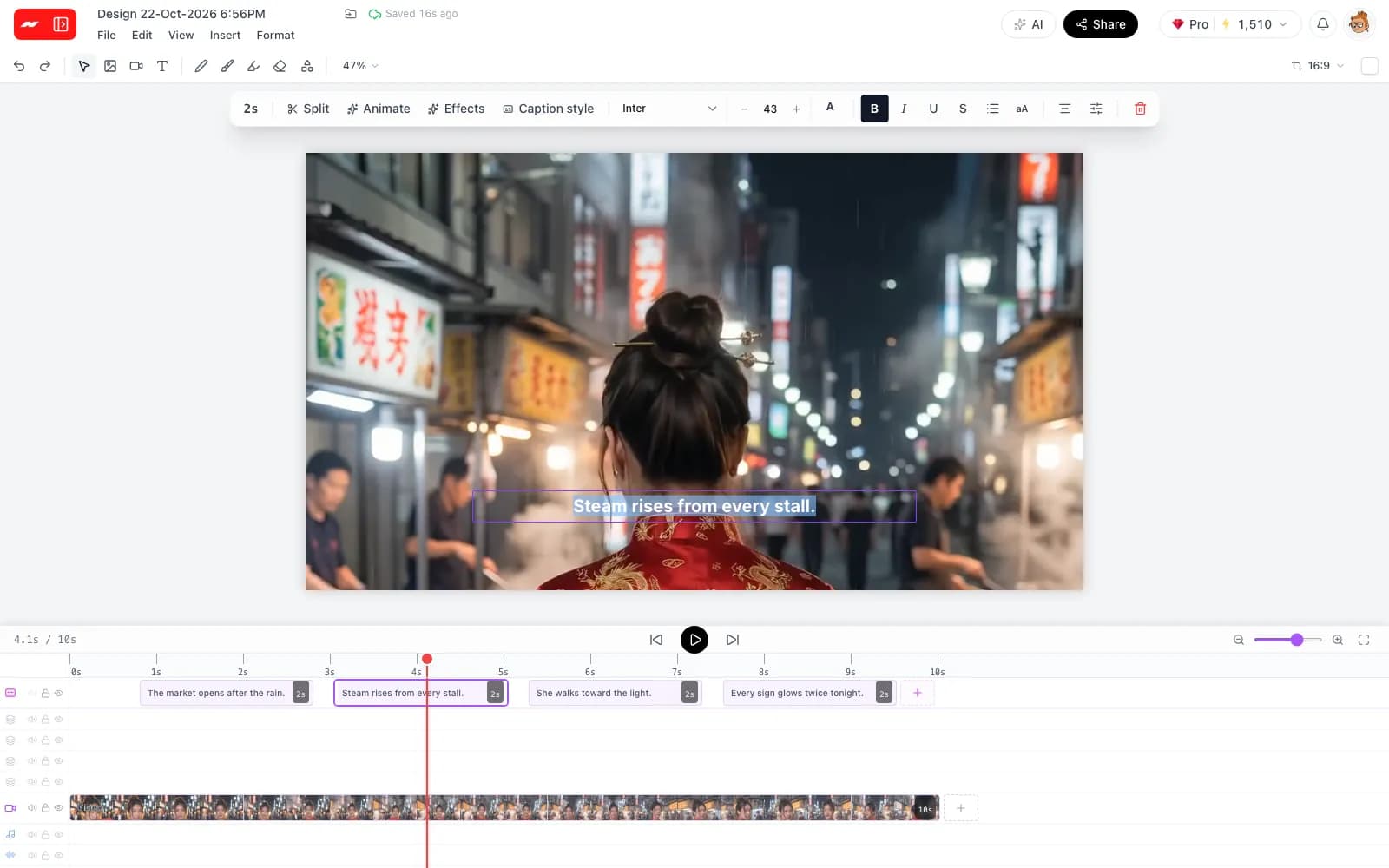
Double-click a subtitle on the video to change a word, a name or a spelling. Lines written by Auto-caption and lines typed by hand edit the same way, and every change can be undone.

A subtitle being edited on the video, with its words selected

Move subtitles anywhere on the frame

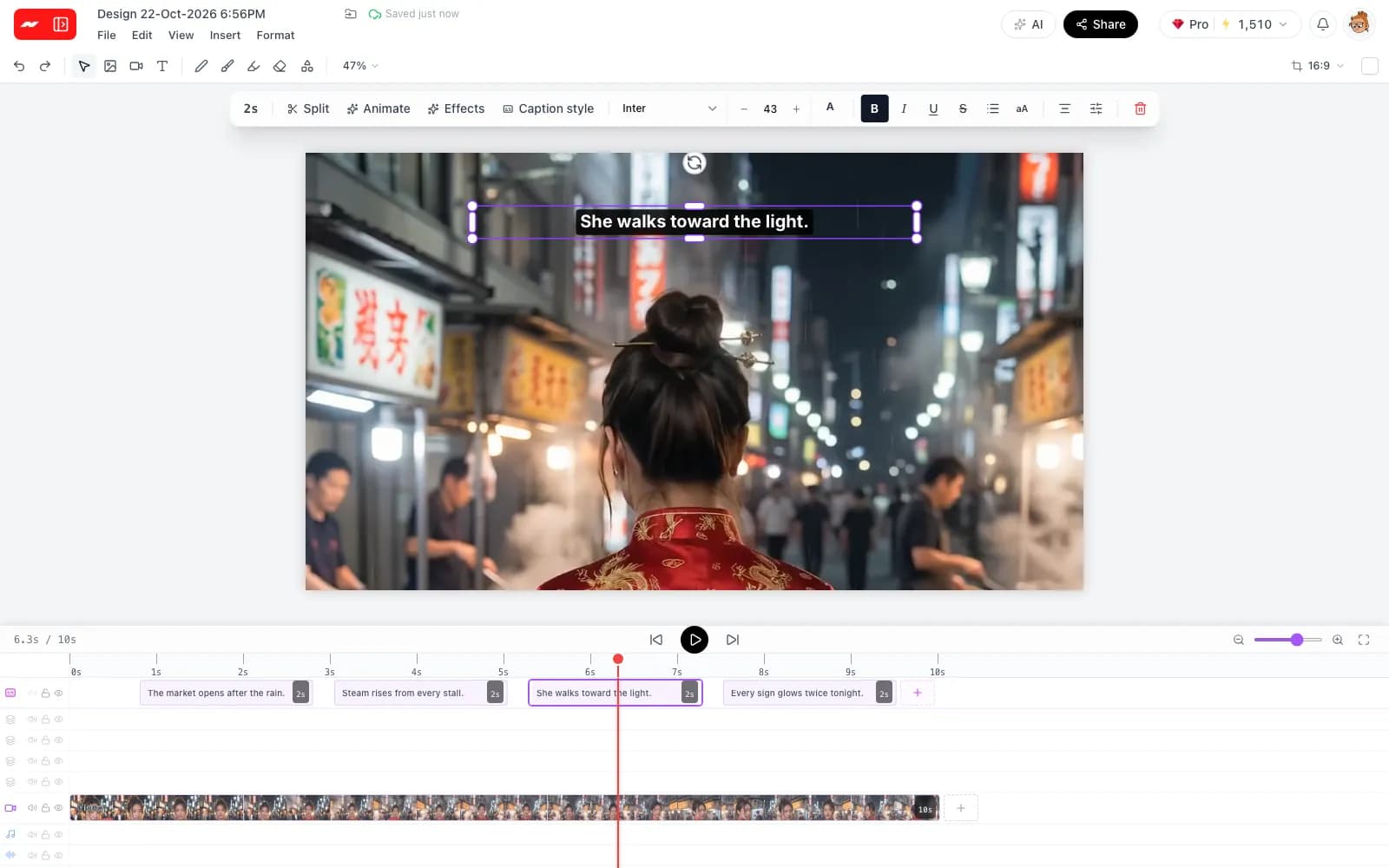
Subtitles start in the lower third, centred. Drag one to the top when the bottom of the frame is busy, and the next new line takes the same place. Size, colour, outline and shadow use the normal text controls.

A subtitle dragged to the top of a landscape video in the editor

Download the video with subtitles burned in

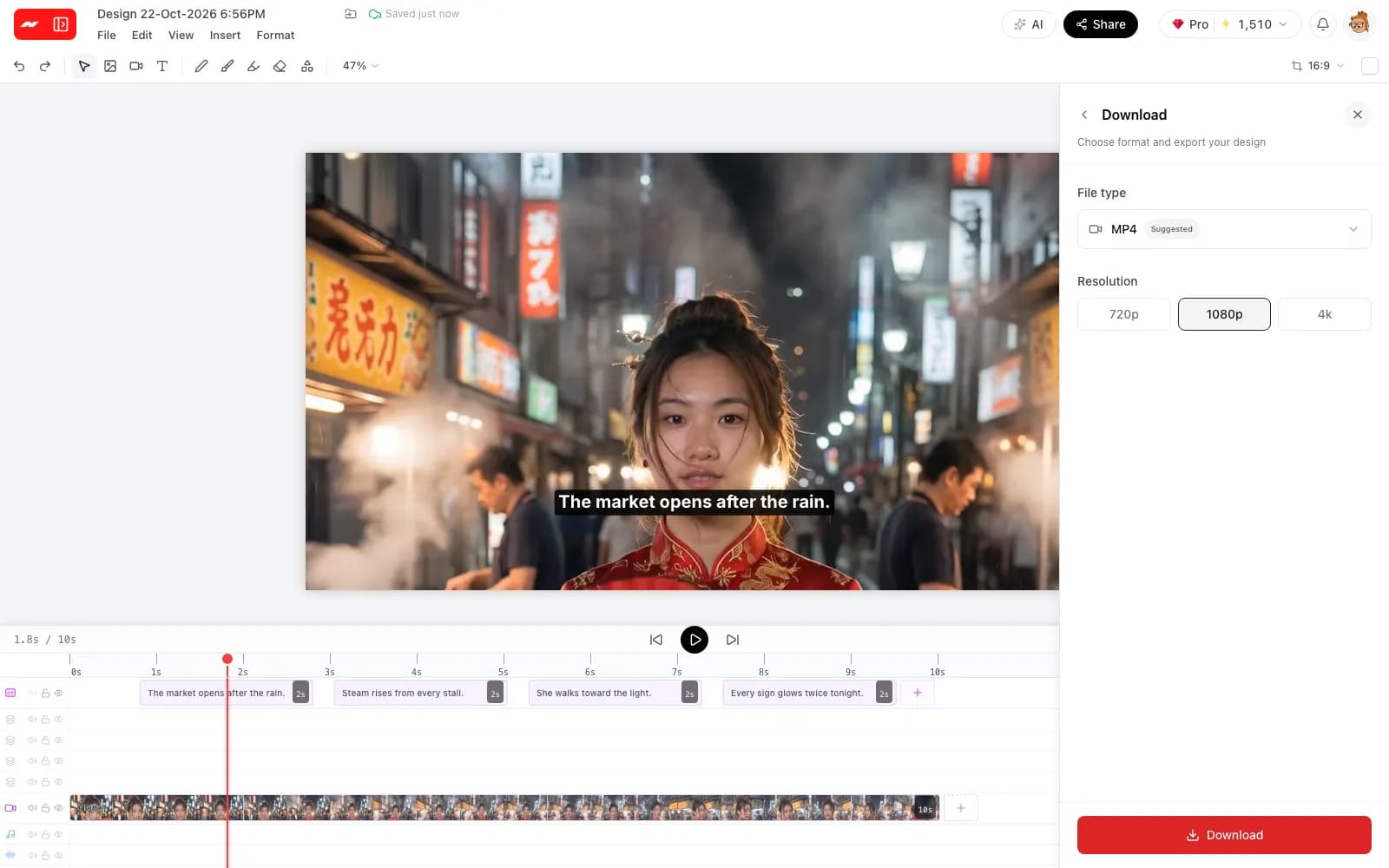
The subtitles are drawn into the exported MP4 exactly as the preview shows them, and appear on every platform and player with no separate subtitle file. Videos export at 720p on Free and Go, and 1080p from Pro.

The download panel with MP4 chosen and the resolution choices

How to add subtitles to a video

  1. Step 1

    Upload the clip

    Open the video editor and upload the video, in any shape from vertical to landscape.

  2. Step 2

    Write the subtitles

    Press Auto-caption on the clip to generate them, or add lines at the playhead and type each one.

  3. Step 3

    Export the MP4

    Check the wording, move any line out of the way, and download the video with the subtitles in it.

Made for videos watched with the sound off

Subtitles let a video make sense on a muted phone, in a quiet office or for viewers who are hard of hearing.

Interviews and talks
every line of the conversation on screen
Tutorials and lessons
steps easy to follow without sound
Product demos
feature names spelled out as they are said
Vlogs
lines placed clear of faces and text
Event recaps
short lines over busy footage
Music and dance videos
typed lyrics timed by hand

More free tools from Hugogen

Questions and answers

Upload the video to the editor, place it on the timeline and press Auto-caption to write the subtitles from the speech. Lines can also be added at the playhead and typed by hand. Download the finished video as an MP4.

Any subtitle can be typed by hand at the playhead, with no AI and no charge. A typed line takes the look and the position of the subtitle next to it.

The subtitles are drawn into the picture of the exported MP4. They show on every platform and player, with no separate subtitle file to upload next to the video.

Subtitles can be dragged anywhere on the frame, for example to the top when the lower part holds a face or text already on screen.

Any video in the editor can get subtitles, in 9:16, 4:5, 1:1 or 16:9. Auto-caption works on clips with speech, and typed subtitles work on any clip, music videos included.

Adding subtitles is included on the free plan, and signing up needs no card. Typed subtitles cost nothing, and Auto-caption uses credits by the minute of video, refunded if a run fails.

Six looks are built in, including Clean for plain subtitles and Karaoke for a highlighted spoken word. Font size, colour, outline and shadow can be set on any line, and one look can be copied to every line.

Exports carry no Hugogen watermark on any plan, the free plan included, whether the subtitles were typed or generated.

Put subtitles on the next video

Generate subtitles from the speech or type them, place them where they read best, and download an MP4 with no watermark.

Add subtitles free